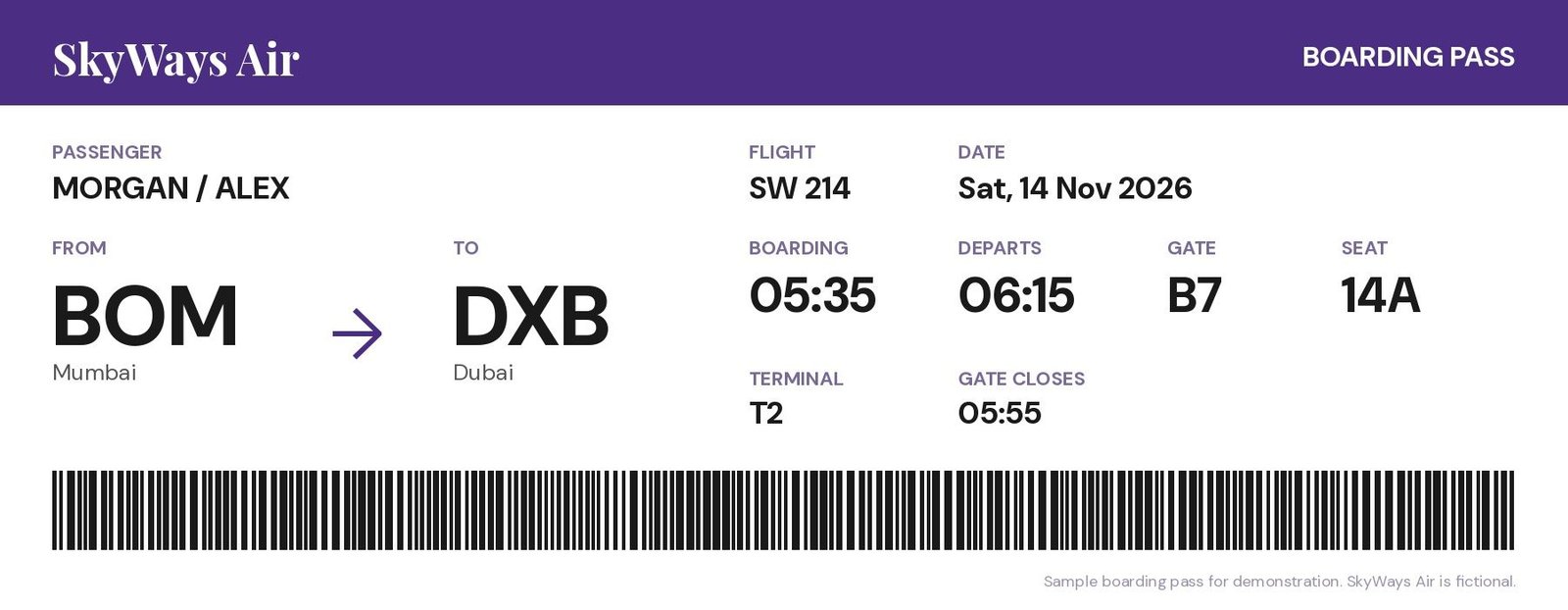
Most of the dates in our lives now arrive as screenshots: a ticket in a chat, a school notice on a website, a delivery window, an invitation someone forwarded. A screenshot is a great way to capture something quickly, but it is a terrible reminder: it sits in your photo library and never tells you anything. Here are the ways to turn one into a calendar event on iPhone and Android.
Option 1: iPhone Live Text
On recent versions of iOS, iPhone can read text inside photos and screenshots with Live Text.
- Open the screenshot in Photos.
- Look for the Live Text button, or touch and hold on the date in the image.
- If iOS recognises a date or time, tap it. Depending on your iOS version it may offer Create Event or similar.
- Check the details in the new event (the title is often empty), then add it.
Good for: a single date with a clear format. Watch out for: titles and places are rarely filled in, and dates in other languages or formats may not be recognised.
Option 2: Android and Google Lens
On Android, Google Lens can read the text in a screenshot.
- Open the screenshot in Google Photos and tap Lens, or use the Lens option on your device.
- Select the text with the date.
- Depending on your device and version, Lens may suggest adding the date to your calendar. If it does not, copy the text.
- Open your calendar, create an event and paste the details.
Good for: copying text you would otherwise retype. Watch out for: you often still need to type the title and time yourself.
Option 3: Type it in
The dependable fallback: open your calendar and create the event by hand. Put the most important words first in the title (“Dentist 10:30, Smile Studio”), paste the address into the location, and set an alert.
It works every time, but it is slow, and slow habits get skipped.
Option 4: Let an app read the whole screenshot
Built-in tools usually handle one date at a time, and leave the rest to you. Documents like boarding passes, wedding cards and bills often contain several dates, times and places.
Invited is built for exactly this. Pick the screenshot from your photo library, or share it straight from the app you are in, and Invited’s AI reads the whole thing, in 80+ languages, and finds every date, time, place and amount. A boarding pass becomes a flight reminder with the departure time and gate; a wedding card becomes one reminder per function. You check what it found, then save.
Screenshots versus photos of paper
The same tools work on photos of paper documents: a letter from school, a card from the doctor, a printed ticket. Photos of paper are harder to read than screenshots because of shadows, angles and curled pages. For the best results:
- Lay the paper flat on a contrasting surface.
- Use good light, ideally daylight, and avoid your own shadow.
- Hold the phone parallel to the page rather than at an angle.
- Fill the frame with the document, but keep all four edges in view.
Keeping your camera roll under control
Screenshots taken “to remember something” pile up quickly. Once a date is in your calendar or reminders, the screenshot has done its job. Delete it, or move it to an album named after the event if you need it on the day, such as a boarding pass or a ticket with a barcode.
A simple rule: if a screenshot has a date on it, it either becomes a reminder today or gets deleted. That one habit keeps your photo library useful and your calendar complete.
Which one should you use?
| Situation | Best option |
|---|---|
| One clear date, iPhone | Live Text |
| Need to copy some text, Android | Google Lens |
| No apps, quick one-off | Type it in |
| Several dates, other languages, or bills and tickets | An app like Invited |
Tips for better screenshots
- Capture the whole relevant part: date, time and place together.
- Zoom in before taking the screenshot if the text is small.
- Avoid cropping out the year; it helps with dates far in the future.
- Do it now. The best moment to turn a screenshot into a reminder is right after you take it.